

Helikai Partner Portal
This page contains instructions to register for our Partner Portal as well as the link to our Partner Portal
Portal Registration Instructions
This step-by-step guide walks you through the process of registering your account to our partner portal.
Partner Portal Registration Process
For access to our portal follow these instructions to submit your request for access. A member of the Helikai partner management team will review your request for access and once approved you will have access to collateral, news, and deal registration.
Step 1: Initial access request:
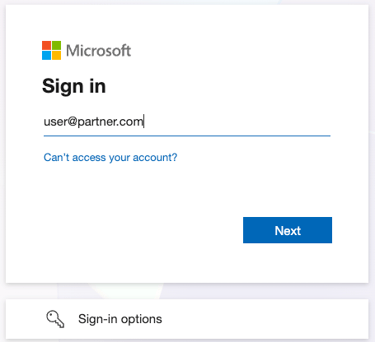
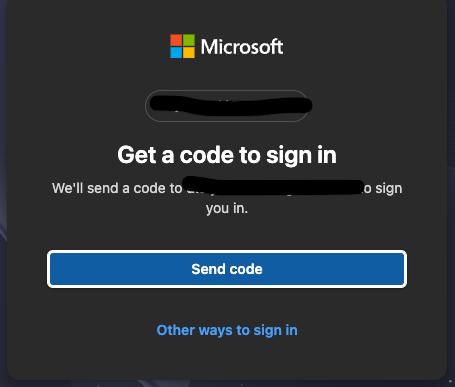
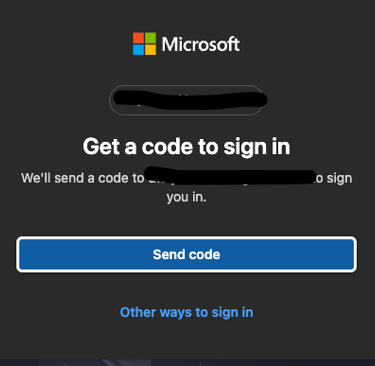
This button will take you to a standard Microsoft login screen. Simply input your email address, it does not need to be a Microsoft account. After inputting your email address you will be sent a OTP (One Time Passcode) to get to the next step.
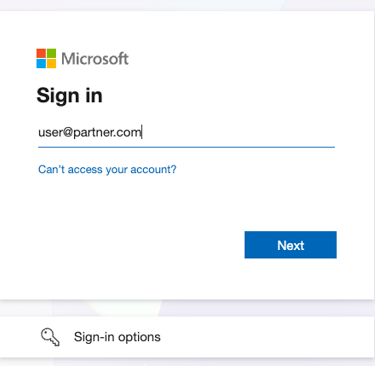
The initial screen will look like the below. Just enter your email address as it is.
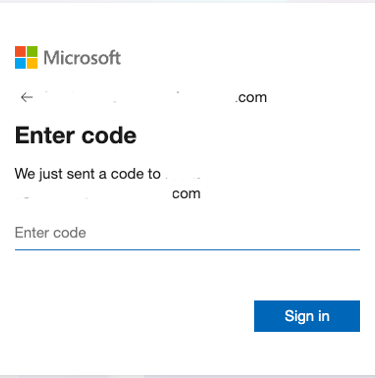
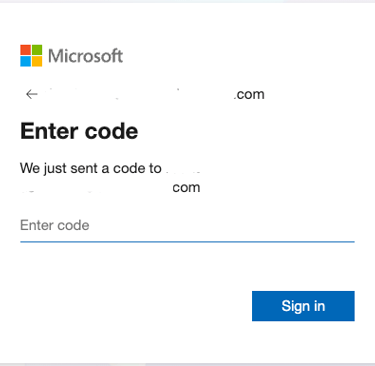
Once you receive your OTP in your email, you will see a screen to enter the OTP. If your system setup accomodates passcodes, that may be automatically identified and the screen will look slightly different. Below are screenshots of both scenarios.
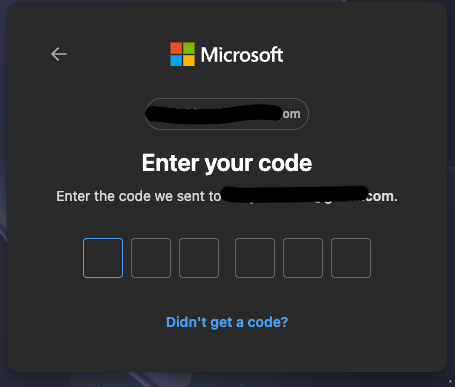
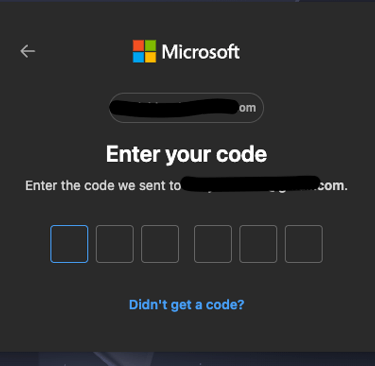
This is the standard (non-passkey) view
If generating a passcode, the screens may look like these.
Next, enter the OTP which was sent to your email
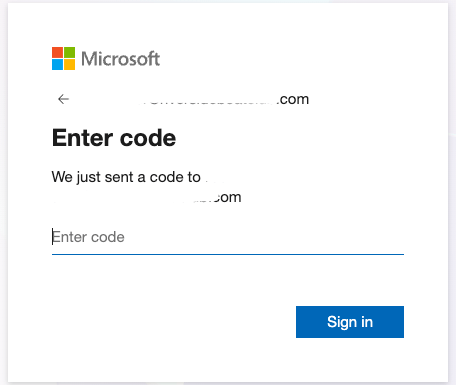
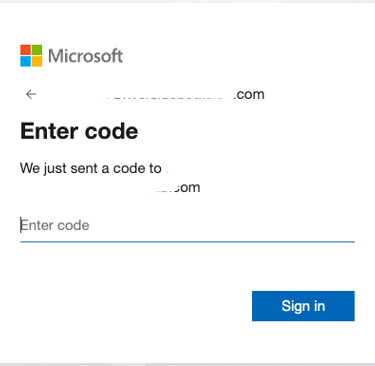
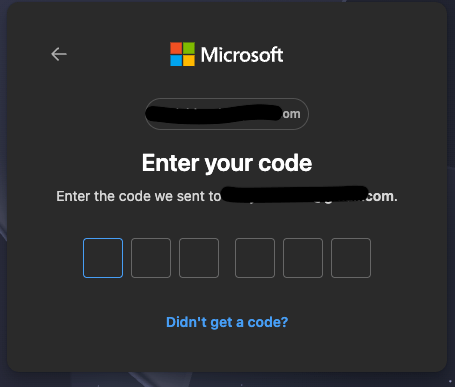
If your system is taking you through the passkey process, you should see a verification screen:
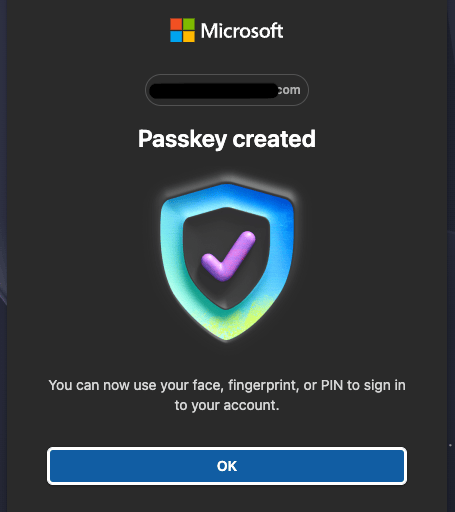
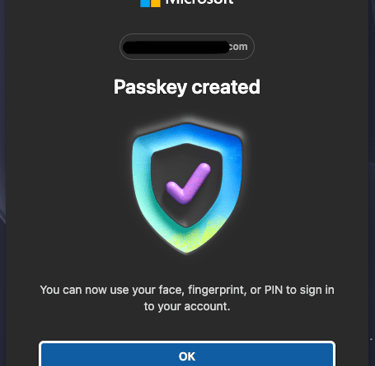
From here you will see a Partner Portal Access request page. Click 'Continue'.
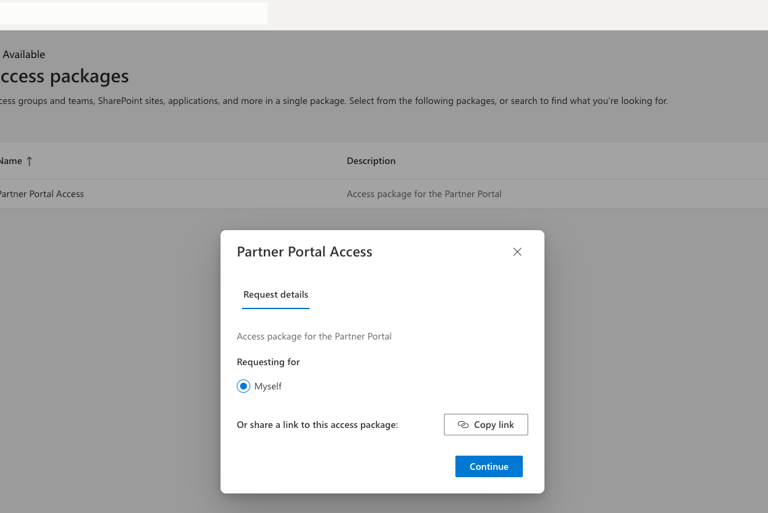
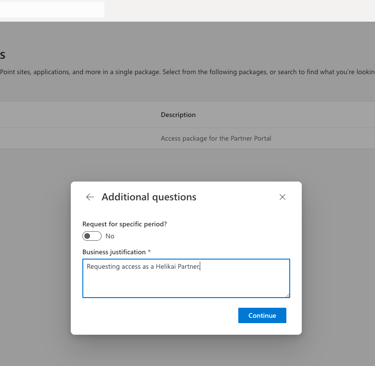
Populate your request justification, click 'Continue', and submit the request.
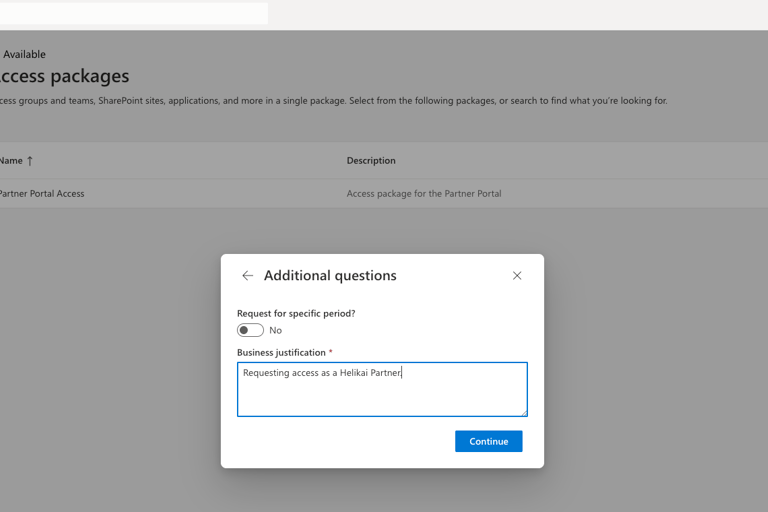
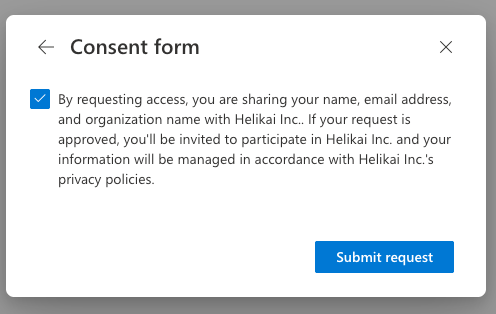
From here, a member of the Helikai Partner Mangement team will review your request for approval! Come back to this page after approval and connect to our Partner Portal!

Helikai ® 2025-2026
208-450-3622